Install on Windows (Distributed Splunk Environment)
Overview
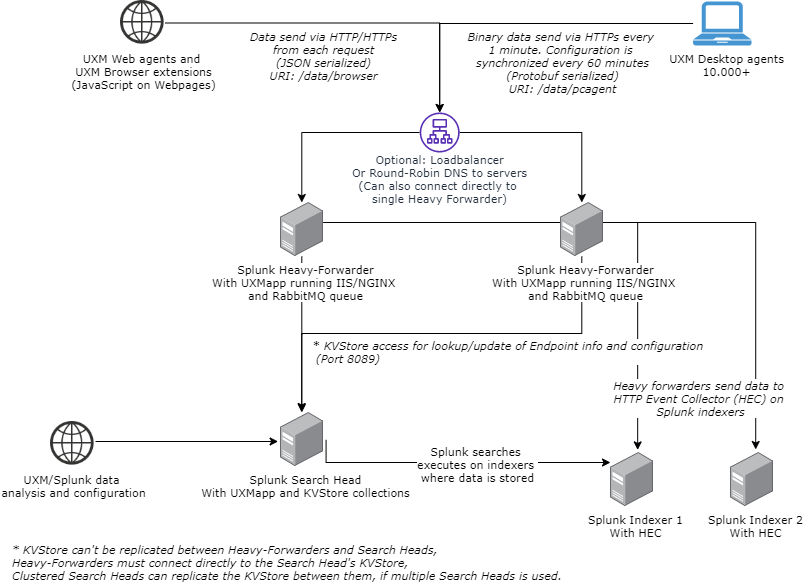
UXM is setup to handle 10.000+ Desktop agents and million of Web page requests per day.
The recommended architecture is to setup an Splunk Heavy-Forwarder with UXM (containing the IIS/RabbitMQ queue) and send data via HTTP Event Collector (HEC) to the indexers.
Setup Splunk indexers
Install the indexer app "uxmapp_indexer_YYYY.MM.DD.tar.gz" on the Splunk Indexers.
Activate HTTP Event Collector
Activate the HTTP Event Collector (HEC) on the indexers that should receive the UXM data.
This is done under Settings -> Data Inputs -> HTTP Event Collector -> Global Settings
Write down the FQDN/IP of the Indexer, if SSL is enabled and Port number (Default 8088), these settings will be used later when setting up the Heavy Forwarder.
Create a new HTTP Event Collector and call it "UXM - uxmapp", indexer acknowlegement has to be disabled.
Select:
- Source type: automatic
- App context: UXM Indexers (uxmapp_indexer) or (uxmapp for standalone environment)
- Indexes: Select the 4 indexes uxmapp_confidential, uxmapp_metrics, uxmapp_response, uxmapp_sessiondata
- Default Index: uxmapp_response
Press Preview and Submit, write down the token value, the settings will be used when configuring the Heavy Forwarder and Search Head.
Setup Splunk Search Head
The splunk search head contains dashboards and data models and is where the user analyses the UXM data.
Please note that multiple scheduled searches which creates summary indexes are created by the UXM app, these requires that you follow Splunk best practices and forwards all data from the Search Heads to the Indexers.
Install the following apps on the Search Head. You can skip the restart untill later.
- Search Head app: uxmapp_searchhead_YYYY.MM.DD.tar.gz
- Custom visualization: uxmapp_waterfall_YYYY.MM.DD.tar.gz
- Custom visualization: uxmapp_worldmap_YYYY.MM.DD.tar.gz
Goto Settings -> Data Inputs -> Scripts and enable the script setup/distributed_searchhead_000_setup_app.py. (The script creates default KVStores entries, Splunk roles and Splunk user that allows Heavy Forwarders to access the KVStore on the Search Head), it will auto disable when done.
You can also follow this guide to "Setup Search Head Manually" if you prefer to configure Splunk manually.
You can view the output of the script by running the following Splunk search:
index="\_internal" source="\*\_setup\_distributed\_searchhead\_000\_setup\_app.log"
Verify roles
There will be 2 new roles after the script has executed called: uxmapp_user and uxmapp_admin:
And a user called uxmapp_wsgi, reset the password for the user and disable that password change is required on next login, store the password it will be used later when setting up the Heavy Forwarder.
Setup/verify permissions for app
Goto Apps -> Manage Apps and click permissions on the uxmapp app.
Add read permissions for the newly created uxmapp_user and read+write permissions for the uxmapp_admin user.
Setup/verify UXM configuration
Open the UXM app, it will ask you to configure it, enter HTTP Event Collector Hostname and Token, leave rest of values as default and press save.
Enable Splunk batch processing scripts
Enable following Data Input script under Settings -> Data Input -> Scripts:
- daily_maintenance.py
- task_generate_tags.py
- update_kvstores.py
The Splunk Search Head needs to be restarted afterwards when all configuration is done.
Setup Heavy Forwarder
The Splunk Heavy Forwarder (HF) receives the data and processes it according to the configuration on the Splunk Search Head KVStores. It also respond with configuration to the UXM Desktop agents when they synchronize hourly.
IIS and RabbitMQ is needed to control the data retrieval and queuing to avoid overloading the HF or Splunk environment, because receiving data from Desktop endpoint and public websites requires a high number of TCP connections.
Setup RabbitMQ
Install newest version of RabbitMQ and Erlang - https://www.rabbitmq.com/install-windows.html
Open elevated command prompt as administrator and run commands below to configure new virtual host and user for UXM:
(Replace GeneratedRabbitMQPassword with own password, and save it for configuration in Splunk)
cd "C:\Program Files\RabbitMQ Server\rabbitmq\_server-3.13.7\sbin"
rabbitmq-plugins enable rabbitmq\_management
rabbitmqctl add\_user uxmapp GeneratedRabbitMQPassword
rabbitmqctl set\_user\_tags uxmapp monitoring
rabbitmqctl add\_vhost /uxmapp/
rabbitmqctl set\_permissions -p /uxmapp/ uxmapp ".\*" ".\*" ".\*"
rabbitmqctl delete\_user guest
Install app
Install the app "uxmapp_heavyforwarder_YYYY.MM.DD.tar.gz" on the Splunk Heavy Forwarder. You can skip the restart untill later.
Configure app
Open the UXM app, it will ask you to configure it, use same Agent Key as the Search Head, enter KVStore, HTTP Event Collector and RabbitMQ settings, leave rest of values as default and press save.
Storage path is for UXM Desktop agent log files and UXM Robot agent video, screenshot and log results, can be skipped.
Save the generated Agent Key for later when deploying the UXM Desktop agent to endpoints. See Deploying Desktop Agents
Save and restart Splunk.
Setup IIS
IIS is used to create web front for uWSGI data receiver.
We recommend for increased security that you setup HTTPs certificates or use an Reverse Proxy if data has to be received from outside the company network.
UXM Web agent and UXM Browser extensions requires that valid HTTPs certificate is configured, because data is send directly from the users browser using the same HTTP/HTTPs security that monitored website has. (Agents after 2022.08.01 sends browser data through UXM Desktop agent)
| Used for | Splunk script | Reverse Proxy endpoint |
|---|---|---|
| Desktop/Robot agent data receiving | bin\task_mq_consumer_pcagent.py reads from RabbitMQ queue. | https://fqdn/data/pcagent |
| IIS / uWSGI adds to RabbitMQ queue | ||
| Web agent data receiving | bin\task_mq_consumer_web.py reads from RabbitMQ queue. | https://fqdn/data/browser |
| IIS / uWSGI adds to RabbitMQ queue | ||
| Have to respond with following headers: |
Access-Control-Allow-Origin: *
Access-Control-Allow-Methods: GET, POST, OPTIONS
Access-Control-Allow-Headers: origin, content-type, accept, LoginRequestCorrelationId
Content-Type: text/plain
|
Prerequisites: Install IIS role, this can be done from the Server Manager by clicking "Add roles and features"
Select Web Server (IIS) under Server Roles:
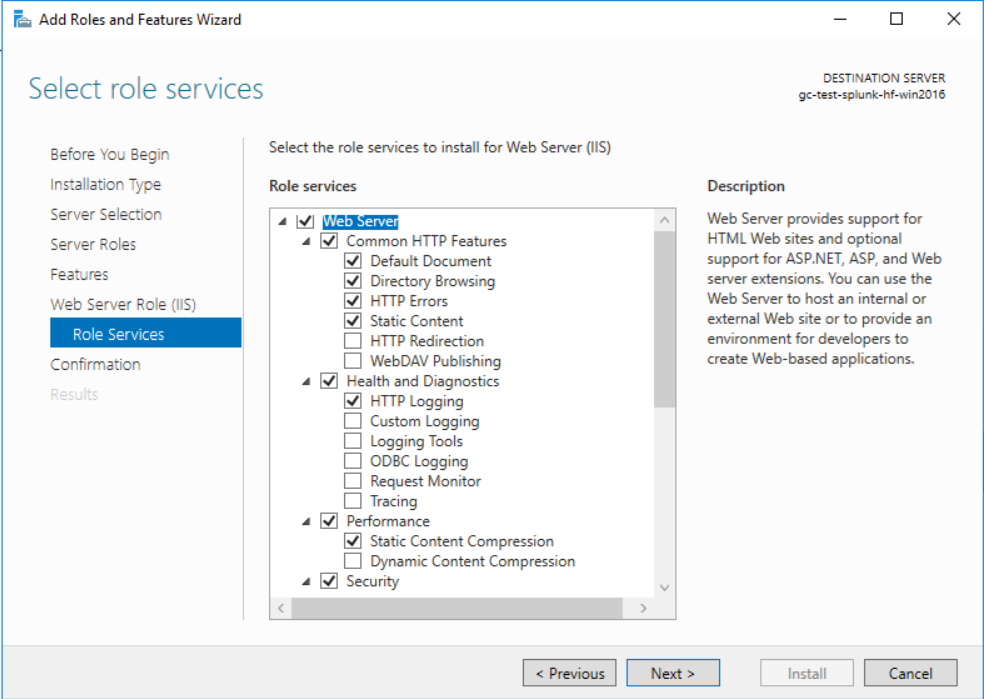
Press Next twice and select the following Web Server Role Service options
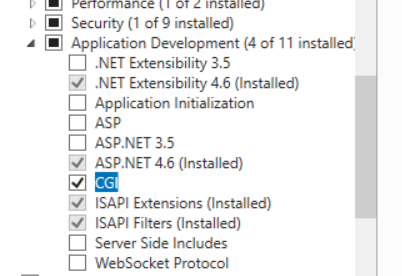
Ensure that CGI is checked under Application Development.
Setup data collection website
Open Internet Information Services Manager and remove the default site
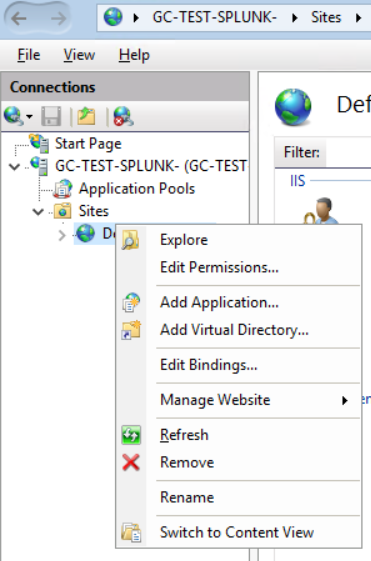
Right-click on sites and select Add Website, give it following information:
Site name: UXM
Application pool: UXM
Physical path: C:\Program Files\Splunk\etc\apps\uxmapp\bin\wsgi
Binding: Port 80
Edit bindings and add HTTP's to receive data from UXM Web Agent or UXM Browser Extensions, this step can be skipped if you are offloading the HTTPs to an external load-balancer/reverse proxy.
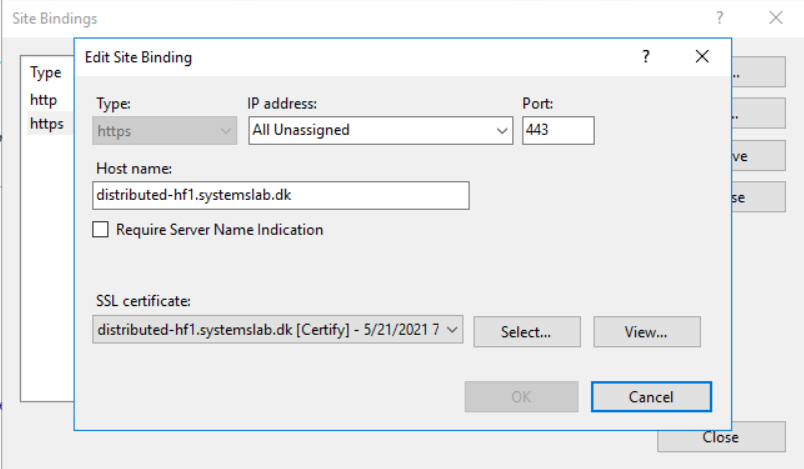
Configure folder permissions
IIS/Python needs to be able to access the following folders, execute the commands in an elevated cmd prompt:
icacls "C:\Program Files\Splunk\etc\apps\mcg\_uxm" /grant "IIS AppPool\UXM":(OI)(CI)(RX) /T
icacls "C:\Program Files\Splunk\etc\apps\uxmapp" /grant "IIS AppPool\UXM":(OI)(CI)(RX) /T
icacls "C:\Program Files\Splunk\etc\apps\search\lookups" /grant "IIS AppPool\UXM":(OI)(CI)(RX) /T
icacls "C:\Program Files\Splunk\share" /grant "IIS AppPool\UXM":(RX) /T
icacls "C:\Program Files\Splunk\etc\auth\splunk.secret" /grant "IIS AppPool\UXM":(R)
icacls "C:\Program Files\Splunk\var\log" /grant "IIS AppPool\UXM":(OI)(CI)(R,W,M) /T
Unlock system.webServer/handlers
Open IIS Manager and go to root server and select Configuration Editor.
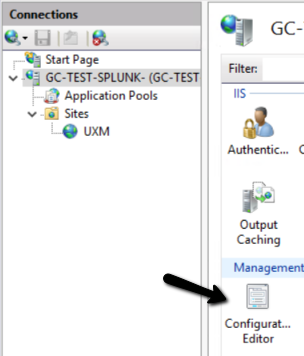
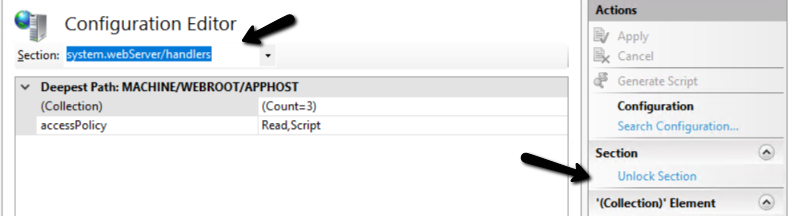
Select system.webServer/handlers and click "Unlock Section"
Install Python and wfastcgi module
Install newest python 3.11.x from https://www.python.org/downloads/windows/, please note that Python 3.12 isn't support currently.
Check "Use admin privileges ..." and select "Customize installation".
Under Advanced Options select "Install for all users" and install under "C:\Python311". (Avoid long paths or whitespaces in the path)
"C:\Program Files\Splunk\etc\apps\uxmapp\bin\wsgi\web.config" will have to be modifed if using other path than "C:\Python311".
Open eleveated command prompt as administrator and execute:
"C:\Python311\Scripts\pip.exe" install wfastcgi six pycryptodome cryptography
Collecting wfastcgi
  Using cached wfastcgi-3.0.0.tar.gz (14 kB)
Using legacy 'setup.py install' for wfastcgi, since package 'wheel' is not installed.
Installing collected packages: wfastcgi
    Running setup.py install for wfastcgi ... done
  Successfully installed wfastcgi-3.0.0
Enable wfastcgi in IIS, see https://pypi.org/project/wfastcgi/:
"C:\Python311\Scripts\wfastcgi-enable"
Open IIS Manager -> Server -> FastCGI Settings and edit the python item.
Set "Instance MaxRequests" to 1.000.000 and Max Instances to 4 to avoid that fastcgi recycles too often.
Verify that data collector url work
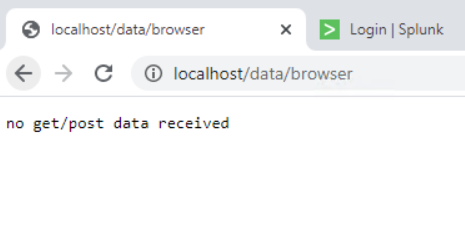
Open http://localhost/data/browser and validate that it returns "no get/post data received".
Enable Splunk batch processing scripts
Enable scripts for UXM Web and UXM Desktop agent data processing.
Goto Settings -> Data inputs -> Script and enable the "task_mq_consumer_pcagent.py consumer1" and "task_mq_consumer_web.py consumer1"
Standalone environment will have to enable the processing scripts defined under: https://support.mcg.dk/hc/en-us/articles/360004216951#Enable_Splunk_batch_processing_scripts
Check for errors
Open the UXM app on the Heavy Forwarder, the default dashboard will show status on installation and report any errors detected.
PCAgent and Web consumer will show following info if everything works: